Connecting your Facebook page with FareHarbor
Last updated: February 2, 2024
Facebook has recently disabled the ability to add custom links to a Book Now call-to-action button on business pages. Existing call-to-action buttons have not been affected by this update, but new integrations moving forward will not have this option.
The following call-to-action buttons can be linked to a custom URL such as FareHarbor, or a landing page on a website: Learn More, Shop Now, View Gift Card, Sign Up, and Contact Us.


Adding a call-to-action button
If you don’t have a call-to-action button on your Facebook page, you can add one by clicking Add a Button, located directly below your cover photo. Choose any one of five buttons suggested above that are compatible with a custom URL from the dropdown that appears in the middle of your screen.

Once you choose the call-to-action button best suited for your business, enter the custom URL in the text box.
Linking your call-to-action button to FareHarbor
To set up your call-to-action button, first decide where you want the button to go on Facebook:
- If you want the button to link to a specific page on your website, simply copy the desired page URL and scroll down to the section Updating your Facebook button below.
- If you’d like the button to go directly to a FareHarbor calendar of availabilities or item display, first you’ll want to generate a direct link from your FareHarbor Dashboard.
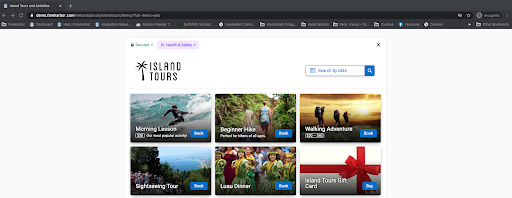
Below is an example of an embedded grid of items generated by FareHarbor. When your customer clicks the “call-to-action” button from your Facebook page, they’ll be taken directly to a page like this where they can start booking:
Generating a FareHarbor link
In your FareHarbor Dashboard, go to Settings and select Book Buttons & Embeds from the sidebar. Your page will look something like this:

In the first section, make sure Book button or link is selected.
- Below the label field, choose where the link should take the customer. In most cases, you’ll want to keep the default option (Specific Flow: Your default flow) to direct the customer to a page with all your activities.
- Optional: In the second section, choose whether to include item descriptions and images (we recommend doing this).
- In the third section, change the selection from Simple HTML to Link, and copy the text in the box.
Now go to your Facebook page and edit the button to include your desired link.
- Hover over the button and click Edit Button.
- Choose one of the action services compatible with a custom URL (any of the five options detailed above in the Adding a call-to-action button section).
- Enter the link you want the button to go to.
Note: If you are currently integrated with another software using a Book Now button, this will need to be changed to one of the five buttons detailed on this page due to Facebook changing the structure of its business pages.
Internal-only content. Don't copy and paste to anyone.
When advising clients, keep in mind the landing pages the client wants the CTA button to arrive on once the customer clicks it. FareHarbor often decides what is best for the client based on their product set, conversion rate, trackability, etc. Below are best practices for recommending the different buttons based on scenario. This is advised communication for client-facing teams.
Learn More:
- The URL should go to an About type-page on the client’s website.
- If the client doesn’t have a website with good content, we can suggest a FareHarbor URL that goes to a main booking flow with item descriptions.
Shop Now:
- If a client has just a few items that are regularly scheduled, we advise a URL straight to the main booking flow.
- It could be better to suggest the URL go to an all tours page on the client’s website, especially if they have a lot of items, and it’s easier to navigate them from the actual site. Additionally, a client with seasonal and varying product sets could use a UTM code and track that CTA from Facebook to the all item page on the website instead of directly to a FH profile page.
View Gift Card:
- URL going straight to FH book form or gift card page on client website.
Sign Up:
- This button should only be used if they intend to use an email marketing service.
Contact Us:
- This should not be used for FH URLs unless the client specifically requests it. Otherwise, recommend a specific landing page on the client’s website.