Using FareHarbor in Read-only mode
Last updated: January 26, 2022
During scheduled maintenance periods, or in the rare event that FareHarbor or one of our providers is experiencing an issue, you can still access important information using FareHarbor in Read-only mode.
Accessing FareHarbor in Read-only mode
If you are using FareHarbor during a period of scheduled maintenance, you will see a pop-up message directing you to Read-only mode. You may also access Read-only mode by copying and pasting the URL below into your browser’s address bar, replacing “yourcompany” with your company’s FareHarbor shortname:
https://readonly.fareharbor.com/yourcompany/login
(Your shortname usually comes from your company’s website URL. For example, www.islandtours.com has the shortname islandtours.)
To verify that you’re in Read-only mode, look for the red alert at the top of your Dashboard:

What to expect in Read-only mode
When using Read-only mode, you will not be able to create or edit bookings, send emails, run reports, or make changes to Dashboard settings. However, you can still perform the following actions:
- View the Bookings section of your Dashboard, including custom calendars
- Find and view customer bookings
- Print customer receipts and tickets
- View your daily Manifest, including custom manifests
- Download and print manifests
- View availability settings, including capacity and crew information
- View (but not edit) Dashboard settings such as users, gift cards, transportation, and affiliates
- View activity logs
- Access the Help Center
Frequently Asked Questions
How will I know if FareHarbor is down?
We will always let you know before a period of scheduled maintenance. In the rare event that FareHarbor or one of our providers is experiencing an issue that prevents you from using your Dashboard, there are several ways to stay updated on FareHarbor’s status:
Subscribe to FareHarbor status updates via email or text by clicking “Subscribe to Updates” at status.fareharbor.com.
Follow @fhstatus on Twitter.
If you are having trouble using FareHarbor and do not see an update posted on one of the above channels, contact FareHarbor Support.
What will online customers see when they visit my website?
During downtime, calendars and embeds on your website will still be visible to customers, but the online checkout process will be temporarily unavailable and a “Call to Book” message will be displayed instead.
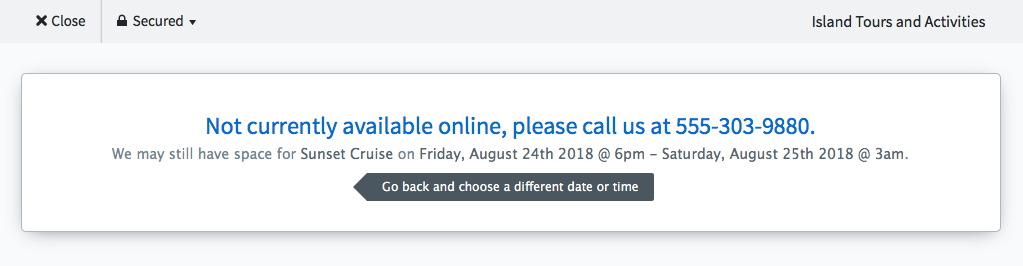
If you have a FareHarbor-hosted website, your site will still be available to customers. Only the online booking process will be temporarily unavailable.
Can customers still book online through third party resellers?
If your FareHarbor Dashboard is connected with an online travel agency such as Expedia or Viator using an API, online booking through these resellers will be temporarily unavailable. Customers will see a message to retry at a later time. However, you may still receive bookings from third parties via email, fax, or other methods.
Will automated emails from FareHarbor still be sent?
Depending on the type of downtime FareHarbor is experiencing, automated emails (such as reminders, follow-ups, and booking notifications) to your customers and staff may not be sent. Once FareHarbor is back up and running, you can send emails to customers directly from their booking or availability.
Will this impact payouts to my bank account?
No. All payouts will run on their regular schedules.
Internal-only content. Don't copy and paste to anyone.
FH Admin options
When using Read-only mode as a FH Admin, you can navigate between companies just as you would normally. FH Admins using Read-only have the same access as Dashboard users, but with a few extra options:
- View Review Express settings
- View Legacy Viator settings
- View Channel API settings
List of actions
Below is a detailed list of what users can and can’t do in Read-only mode.
| Action | Available in Read-only mode? |
|---|---|
| Create new bookings |  |
| Edit bookings | |
| Find/open bookings |  |
| Print customer receipts/tickets | |
| Rebook bookings | |
| Cancel bookings | |
| Email customers | |
| Process payments | |
| Add payments | |
| Issue refunds | |
| Receive payouts | |
| View custom calendars | |
| Edit custom calendars | |
| View availability settings | |
| Edit availability settings | |
| View Manifest | |
| View custom manifests | |
| Download Manifest | |
| Print Manifest | |
| Edit Manifest | |
| Check in customers | |
| View reports | |
| Run reports | |
| View items | |
| Edit items | |
| View settings | |
| Edit settings | |
| View activity logs | |
| Use FareHarbor iOS app | TBD |
| Use FareHarbor Sites | |
| Use FareHarbor Help Center | |